5 Must know Animation tips for Premiere Pro
 Jordy Vandeput
79K views
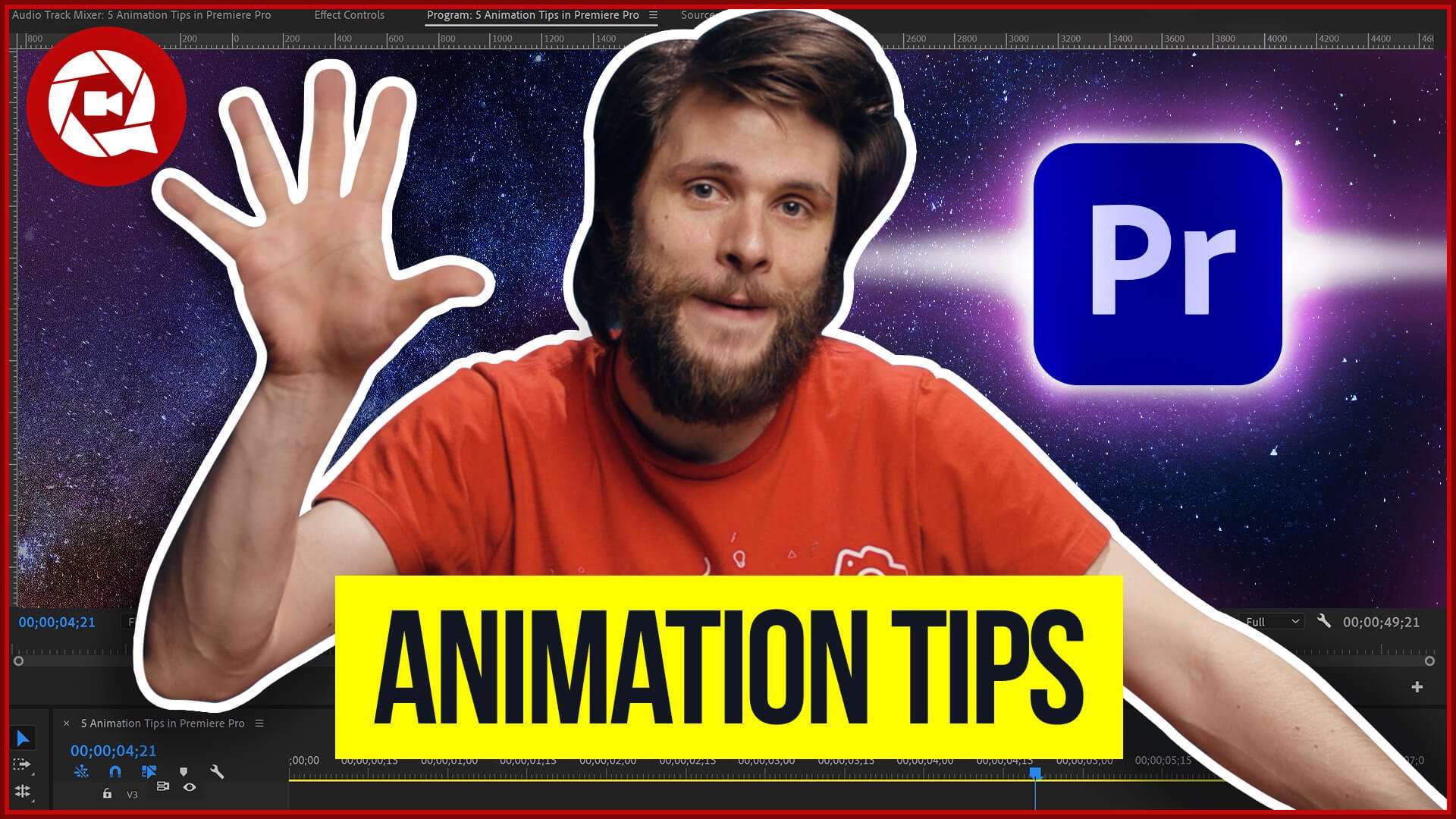
In this Tutorial you will learn 5 Animation tips with Essential Graphics from Adobe Premiere Pro to achieve professional Motion Designs.
Making animations in Premiere Pro
When it comes to animation a lot of people think that you should use Adobe After Effects or Adobe Animate but it is actually possible to make (simple) animations in Adobe Premiere Pro.
Pinned animations
A first simple animation is a text animation with a pinned background. What this means is that you can place a background, like for instance a rectangle or ellipse and pin that to the overlaying text. Whenever you type a text the background will adjust itself to the lenght of the text. This is an ideal animation for when you want to make titles on your screen or lower thirds.
Master styles
When you create a specific style of lower third or title you can save those styles as a preset. You can name for example the title and subtitle separately and for every new title that you can create you can place the master style preset on that title so that each time you have the same styling. This is super easy when you want a consistency in your text animations.
Text masks
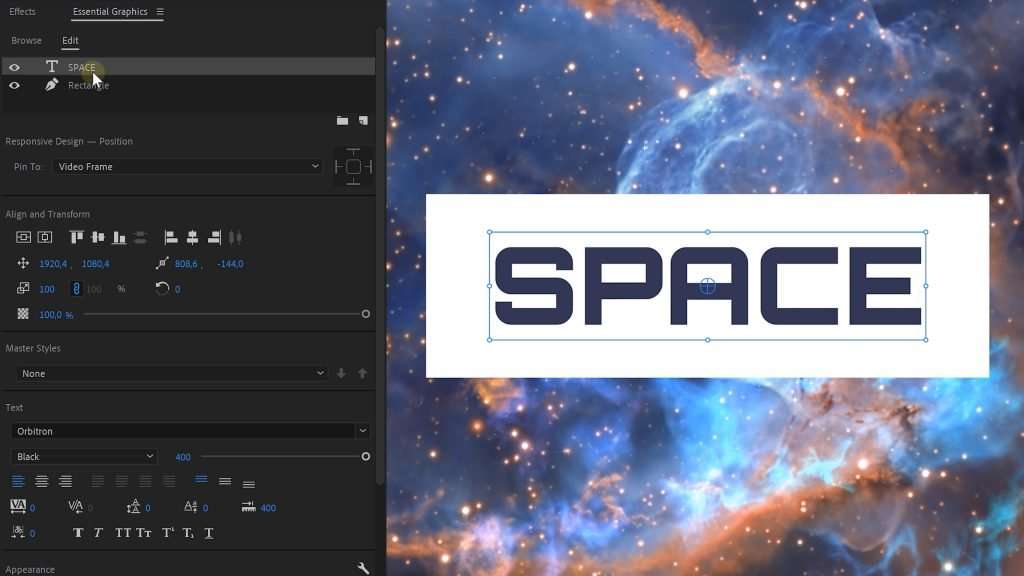
With the Essential Graphics tools in Premiere Pro you can make text masks. Either you can place a video behind a text and use the text as a mask so the video will only be visible through the text. Or you can also create a mask with a custom shape, making it a reveal animation for the text.
Gradients
Applying a gradient inside the text styles is impossible in Premiere Pro but what you can do is use the 'ramp' effect. With this effect you can create your own custom gradient which you can then use in your text animation or lower third. Super simple, yet super useful!
Grouping inside Essential Graphics
If you want to create text animations with motion blur you have to use the 'transform' effect. But this will apply to everything inside the essential graphics so what you can do is divide portions of your animation with groups. Applying the transform effect inside a group will only create motion blur on those animations, not on the ones who are in different groups. And with those groups it's super easy to create an orderly animation that each has different effects applied to it.
Storyblocks
As a creator you often get a creatorblock, you don't feel the creativity anymore and thinking of ideas to shoot is quite difficult. But in those cases you can always rely on Storyblocks, an online library with thousands of stock clips, overlays and customizable After Effects templates. For one price per year you can download as much as you like so you won't have to worry about going out and shoot creative shots, you can just download as much as you want and create your own epic edit with it.
Jordy Vandeput
Founder of Cinecom · 2.75M+ subscribers on YouTube
Jordy Vandeput is a Belgian filmmaker who has taught practical filmmaking to millions through Cinecom. He breaks professional techniques down into clear, repeatable steps you can use on your very next project.

0 comments