Modern Logo Animation in Adobe Premiere Pro
 Jordy Vandeput
1.1M views
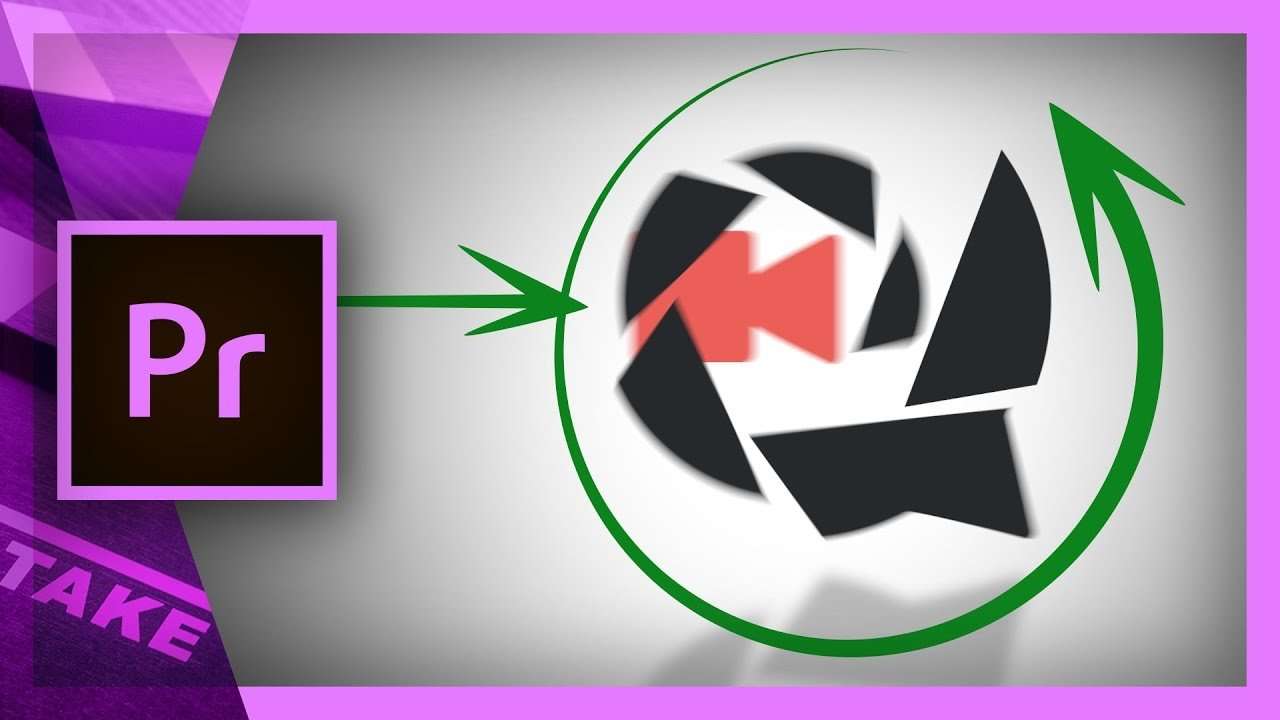
Modern animation that adds more dynamic to your logo. Learn to use multiple layers and fully customize your logo animation in Premiere Pro.
To keep up with the rapid changing trends and styles, you need a modern logo animation that can impress everyone. In this tutorial we create a simple but awesome animation, with techniques that can be used for every unique logo.
One of the techniques we used is layering, which is very common in Photoshop and After Effects. The idea of layering is that you divide every element of your logo into a separate items. This makes it possible to customize and modify every item separately when needed. For our animation we created our logo in Photoshop, with every element on a different layer. Then we used the dynamic link between Photoshop and Premiere Pro to make a sequence from the Photoshop composition, which allows us to maintain the separate layers in Premiere Pro. Now we can animate every element in a different way or motion. It's even possible to go back to Photoshop and correct faults in the logo, if needed. If you don't have Photoshop you can always use PNG files from your separate elements, if they have transparent backgrounds of course.
Another technique we explain is the transform effect in Premiere Pro. This gives us more options to adjust the motion parameters like position, skew, rotation, scale and so on. But it also let's us create motion blur in an easy and fast way, which normally takes more steps to achieve in Premiere Pro. Motion Blur is essential for moving objects, as the object moves over the screen it will cause aliasing, which is seen as a blur. Without this blur the object will look unnatural due to the hard lines.
Premium Beat
This video was supported by Premium Beat, a curated royalty free music website that provides exclusive, high-quality tracks and sound effects. Which can used in new and traditional media projects, including videos, films, apps, games, and television programming.
Jordy Vandeput
Founder of Cinecom · 2.75M+ subscribers on YouTube
Jordy Vandeput is a Belgian filmmaker who has taught practical filmmaking to millions through Cinecom. He breaks professional techniques down into clear, repeatable steps you can use on your very next project.





8 comments
I'm so grateful for the videos here, so helpful
hello! test on-line service for download instagram stories: https://dis.im
Thanks a lot for this one It does help a lot and appreciate your hard work
Please I can't find my pen tool under my opacity I need your help on how I can see again premiere pro cc2015
File broken for Cs6
i cant open the file in cs6 2016. It says that the file is damaged pls help
Hey Yannick, many thanks for sharing your work. I'd like to ask you to please consider us with older versions. I'm on CC 2015 and can't open your project.
I`m sry, but i`m rather retard . Can somebody help me? When I open project hot i`m to put in psd file -_-. I would be very pleased of someon helps me.