How to Create Glow (Premiere Pro Tutorial)
 Jordy Vandeput
99K views
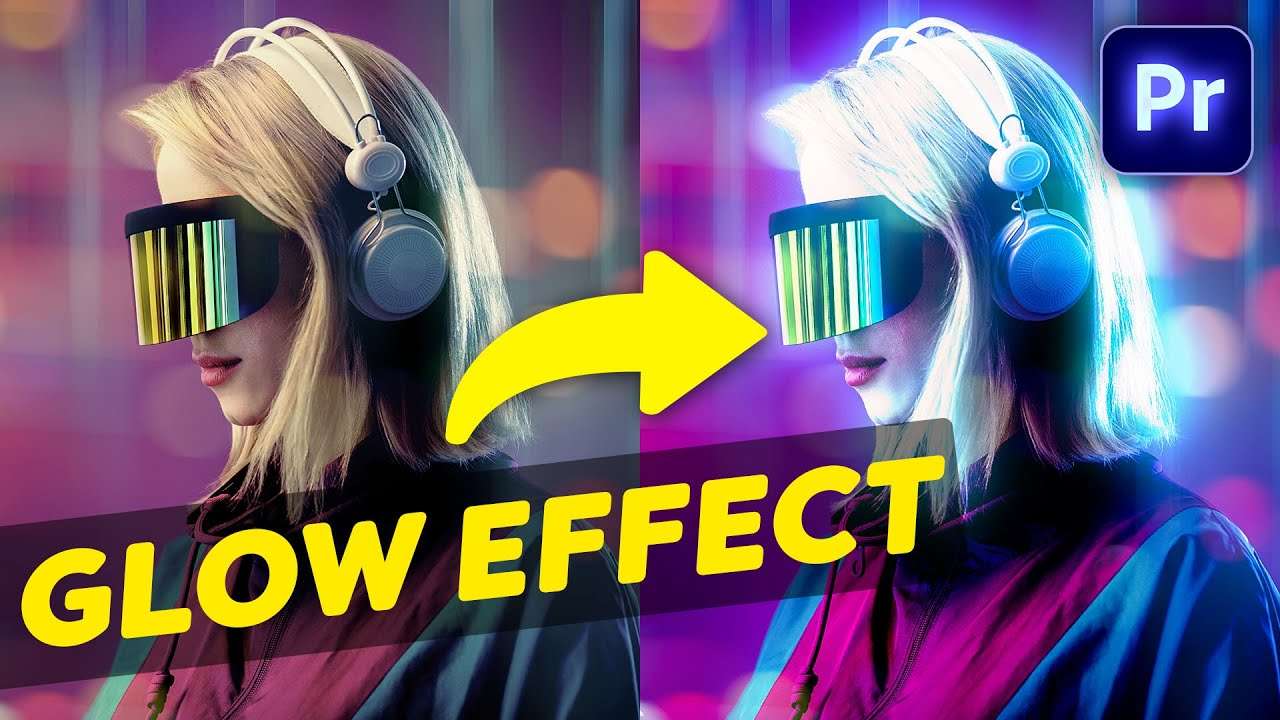
Learn how to create a good looking glow effect for your text and footage in this beginner tutorial in Adobe Premiere Pro.
How to create glow in adobe premiere pro
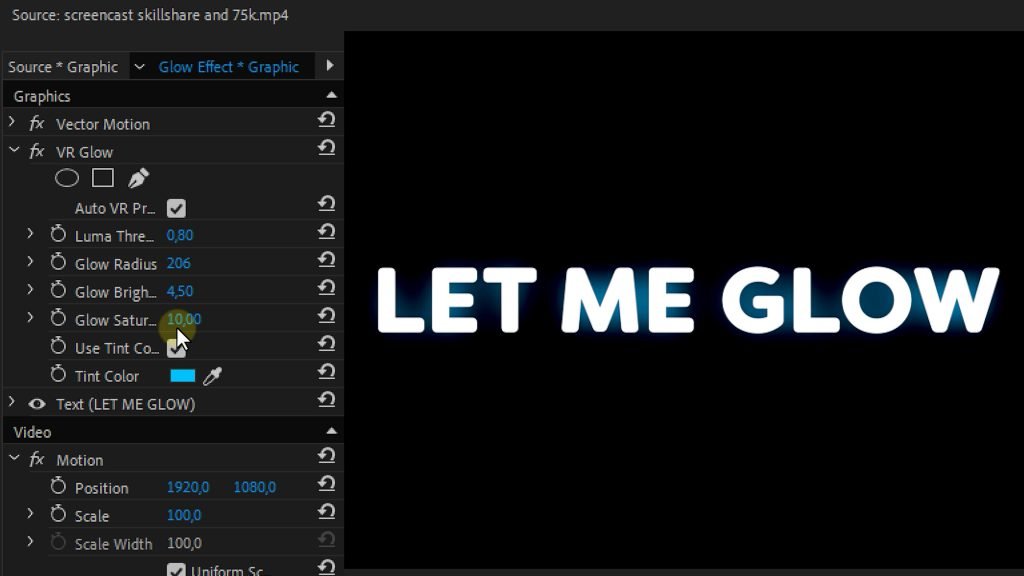
Premiere Pro has two default effects in it's library that can create glow on your footage or text. But they aren't that good (in my honest opinion). The first default glow effect is VR glow, which is a bit of a heavier effect since it is normally used for VR or 360° footage. It looks okay but not that great in my opinion. It does have a couple of properties that you can change to tweak it's look.
The next default effect is the alpha glow effect. Once again you can tweak it a bit from the effect controls panel. But it looks even worse than the first effect. Since Premiere Pro doesn't have any other standard glow effect we need to get creative. Of course you can always buy presets like the ones from Red Giant who do have a nice glow effect but there is a cheaper and easier workaround.
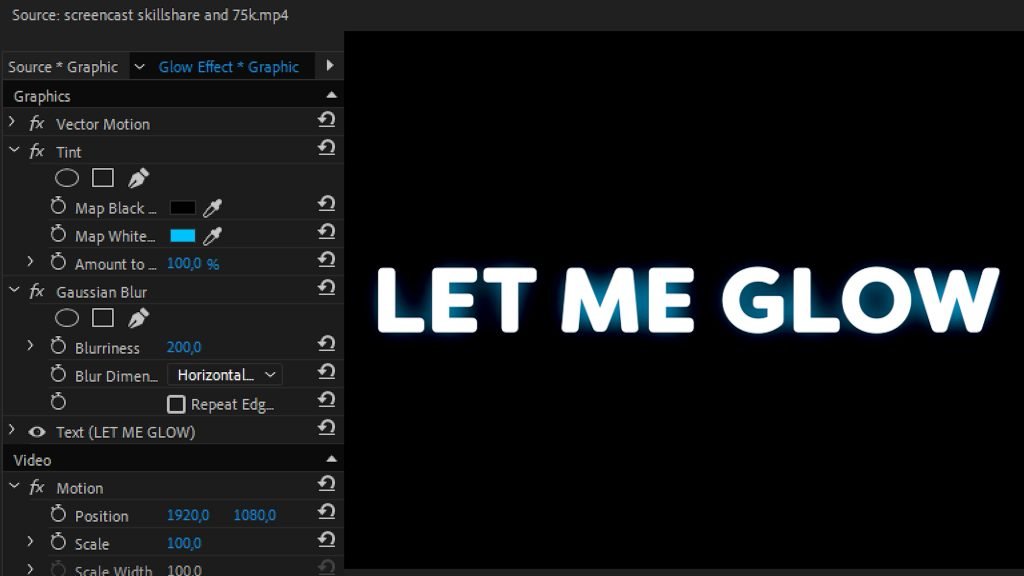
Duplicate your text layer and on the bottom layer apply the gaussian blur effect. If you now increase the blurriness you will immediately get a nice looking glow behind your text. You can alter the color of it by placing the tint effect on that same layer and changing the color mapping of the whites.
Applying this to normal video footage is a bit different but still very simple. First duplicate the footage. On the top layer, use the lumetri color effect to make it a bit brighter and add more contrast. Then apply the luma key effect to it and make a selection of only the highlights in your shot. Then apply the gaussian blur and tint and to finish it off, set the blending mode to lighten and you're done. A nice looking bloom effect.
Want to learn more about premiere pro?
If you're an upcoming video editor and you want to learn all the basics of Adobe Premiere Pro then check out our courses which are available on our website or on Skillshare. The first month of your subscription if completely free so definitely worth checking it out.
Jordy Vandeput
Founder of Cinecom · 2.75M+ subscribers on YouTube
Jordy Vandeput is a Belgian filmmaker who has taught practical filmmaking to millions through Cinecom. He breaks professional techniques down into clear, repeatable steps you can use on your very next project.




0 comments